How to Create a Linux .desktop Launcher to Start SSH Config Manager from the Start Menu or Desktop?
SSH Config Manager is distributed as a portable archive. You can launch it directly from the command line:
cd /opt/ssh-config-manager/ssh_config_manager.dist/  # Replace with your extraction path
./ssh_config_manager
To create a clickable launcher icon: Download the latest Linux release. The root directory of the extracted archive contains an ssh-config-manager.desktop file with the following content:
[Desktop Entry]
Version=1.0
Type=Application
Name=SSH Config Manager
GenericName=SMGR - Terminal emulator & SSH Hosts/connections manager & SFTP
Comment=Manage SSH connections in groups via WebUI
Path=/opt/ssh-config-manager/ssh_config_manager.dist/
TryExec=/opt/ssh-config-manager/ssh_config_manager.dist/ssh_config_manager
Exec=/opt/ssh-config-manager/ssh_config_manager.dist/ssh_config_manager
Icon=/opt/ssh-config-manager/ssh_config_manager.dist/assets/icon.png
StartupNotify=true
Categories=System;TerminalEmulator;Network;Utility;Application;SSHClient;SFTP;
X-TerminalArgExec=--
X-TerminalArgTitle=--title
X-TerminalArgAppId=--class
X-TerminalArgDir=--working-directory
X-TerminalArgHold=--hold
Update the Path, TryExec, Exec, and Icon paths to match your extraction location.
Then add execute permissions and copy the file to the menu directory:
chmod +x /opt/ssh-config-manager/ssh_config_manager.dist/ssh_config_manager
chmod +x ssh-config-manager.desktop
cp ssh-config-manager.desktop ~/.local/share/applications/
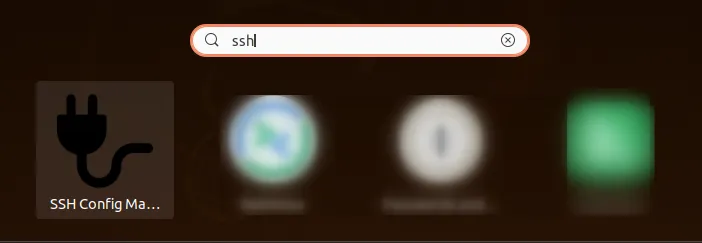
Now you can search for SSH Config Manager in your system’s start menu and launch it with a single click.